Open Explore and count the posts you would actually stop for. If the grid is full of a hobby you dropped months ago, or a topic you watched once by accident, Instagram is still serving what it learned back then. Scrolling past rarely fixes it, because the app keeps learning from whatever you pause on.
You can tell Instagram to start over, or correct it one post at a time. Knowing how to reset Instagram algorithm suggestions properly also means knowing what the reset leaves alone.
How to Reset Instagram Algorithm Suggestions in Content Preferences
Instagram started testing a reset for its suggestions (opens in a new tab) in November 2024, and the button now sits in your settings.
Quick answer: To reset your Instagram algorithm, go to your profile, tap the menu, open Content preferences and tap Reset suggested content. This clears what Instagram learned about your interests for Explore, Reels and suggested posts in Feed. For smaller fixes, tap Not interested on posts you don't want or clear your search history.
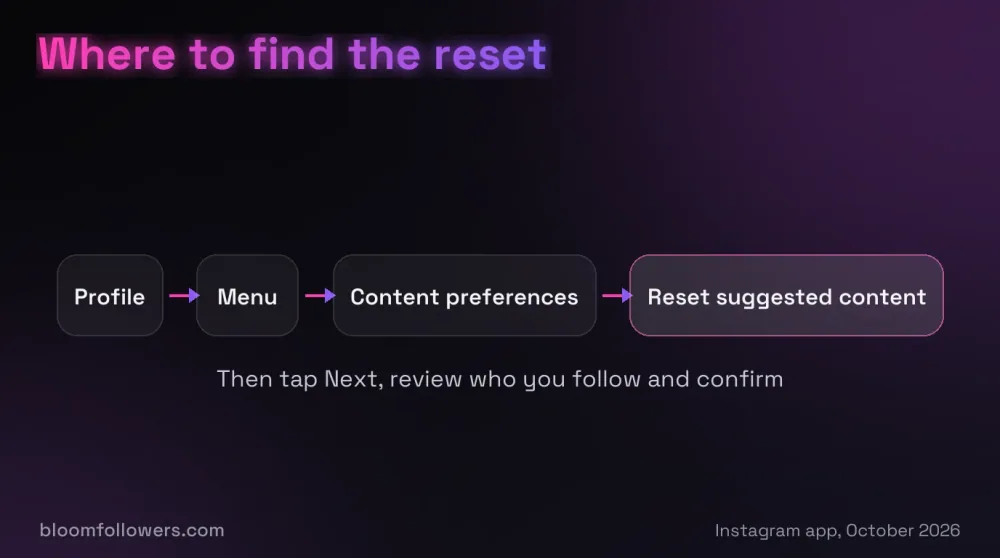
Open Settings and Activity
Go to your profile and tap the menu icon, the three lines at the top right. This opens Settings and activity.
You'll only find the reset in the Instagram app for iPhone and Android. It isn't available when you use Instagram on a computer.
Tap Content Preferences
Scroll down and tap Content preferences. If you can't spot it, type "content preferences" into the search bar at the top of the settings screen.
Keep this page in mind, since it also holds the Sensitive content filter you may want later.
Tap Reset Suggested Content
Tap Reset suggested content, then tap Next. Nothing is cleared yet, because Instagram first shows a review screen.
Review the Accounts You Follow
Next comes a list of the accounts you follow, so you can unfollow any that post things you no longer want. This step is optional, and the reset itself does not unfollow anyone.
If that list runs into the hundreds, a mass unfollow is a separate job that works better in small batches.
Confirm the Reset
Tap Reset suggested content again to confirm. Instagram then shows a message that your suggested content has been reset (opens in a new tab), and new suggestions start building from what you do next.
A reset clears interests, not your account: your posts, messages and follows stay, and your ads don't change. It also won't change who sees your own posts, which still depends on things like the best time to post on Instagram for your followers.
How to Change Instagram Algorithm Picks Without a Full Reset
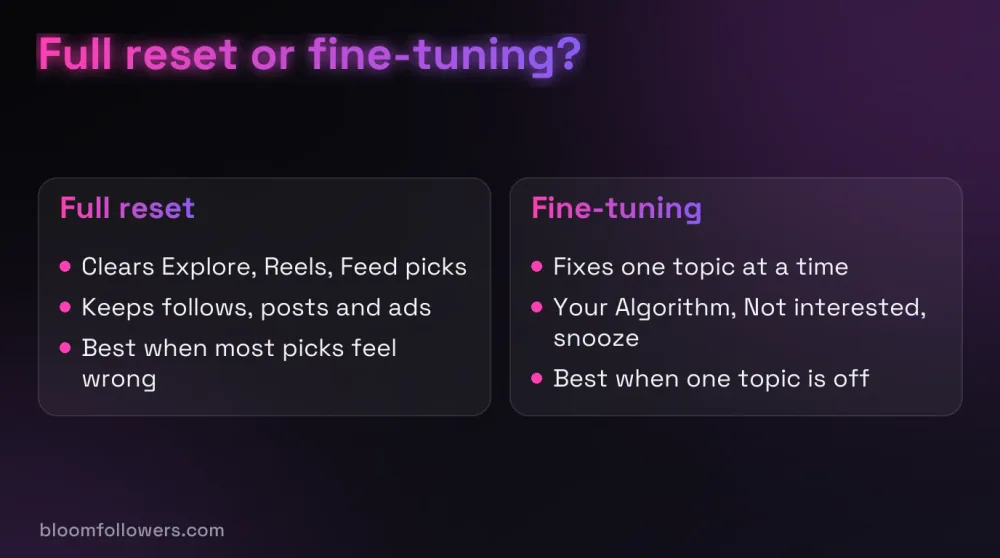
Sometimes only one topic is wrong, and a full reset would throw away everything Instagram got right. Part of knowing how to reset your Instagram algorithm is knowing when a smaller fix will do.
Start With Your Algorithm
A quicker middle ground is Your Algorithm. Tap the slider icon at the top right of the Reels tab to see the topics Instagram has picked for you. You can add or remove topics, or ask for more or less of each one.
If the icon is missing, update the app first: the tool reached English-speaking users worldwide in January 2026 (opens in a new tab).
Use the Smaller Controls
Each control below changes one input to how the Instagram algorithm ranks posts, so you can fix a single problem without starting over.
| Tool | Where to find it | What it changes |
|---|---|---|
| Your Algorithm | Slider icon at the top right of Reels | Adds or removes topics behind Reels, Explore and Feed suggestions |
| Not interested | Three dots on a suggested post or Reel | Shows you less from that account and similar posts |
| Interested | On suggested posts and below some Reels | Asks for more posts like that one |
| Snooze suggested posts | The X on a suggested post in Feed | Hides suggested posts in Feed for 30 days |
| Hidden Words | Settings and activity | Hides suggested posts that contain words, phrases or emojis you add |
| Sensitive content | Content preferences | Set it to Less for fewer upsetting posts in suggestions |
| Recent searches | Menu, then Your activity, then Recent searches | Clear all removes searches that point to old interests |
A cleared search can reappear if you search for it again, so it only helps once you stop looking that topic up.
Follow and Unfollow on Purpose
Accounts you follow fill most of Feed and Stories, so dropping a few that no longer fit removes them at the source. When you want a break from suggestions, the Following view shows only accounts you follow, newest first.
Every one of these controls lives inside the Instagram app, so no outside service needs your password to fix your feed. Even when you order growth from us at BloomFollowers, we only need a public username or post link.
What to Expect After Resetting Instagram Algorithm Suggestions
Instagram gives no timeline for how fast a reset settles. It only says suggestions start to personalize again over time, based on what you interact with next.
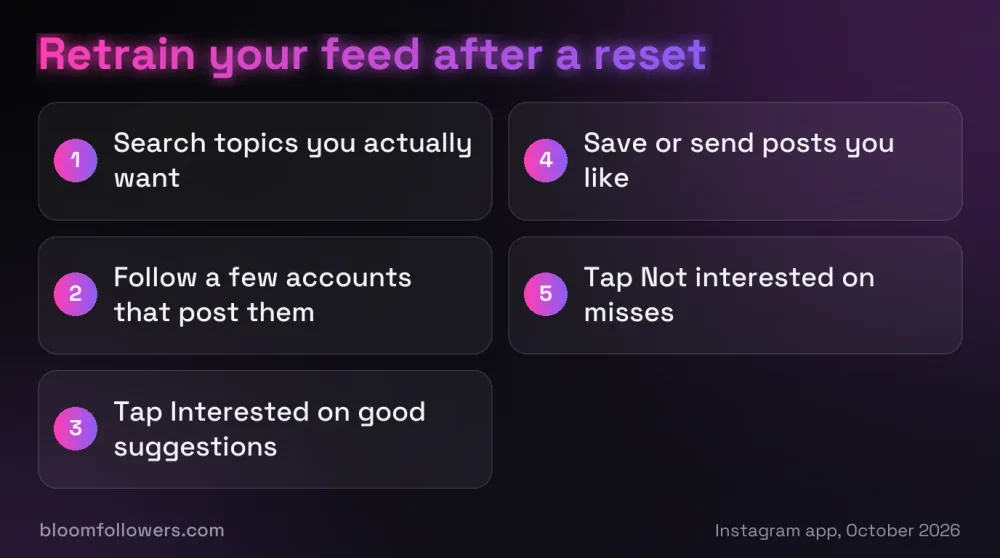
Right after the reset, Explore and Reels can look generic because they have little to go on. Use the first few days to teach them on purpose:
- Search for the topics you actually want to see.
- Follow a few accounts that post them, and tap Interested on good suggestions.
- Save or send posts you like instead of only scrolling past.
- Tap Not interested on misses right away.
- Open Your Algorithm after a week and check that the topics look right.
If your own reach is the real problem, a reset won't help, because it changes what you see, not who sees your posts. Posts that stop reaching non-followers point to recommendation limits, often called an Instagram shadowban.
If You Post Too, Give Your Profile a Head Start
A cleaner feed also helps you study what works in your niche, which is the first step to growing your own following. When your posts are ready but the profile looks new, some early followers and likes give first-time visitors a reason to look closer.
Our Instagram growth bundles put followers, views, likes and comments in one order. The Instagram Starter Bundle ($55.99) includes 1,000 followers, 5,000 views, 1,000 likes and 10 comments. Every order uses real, active profiles and needs only your public username or post link, never your password.
Delivery starts within minutes and can be spread over several days at no extra cost. Followers carry a 60-day refill, and every order has a 7-day money-back guarantee.
| Service | Starts at | Good for | Link |
|---|---|---|---|
| Instagram bundles | $55.99 (Instagram Starter Bundle) | Followers, views, likes and comments in one order | See Instagram bundles |
| Followers | $2.99 for 100 followers | A new profile that looks established | See follower packages |
| Likes | $1.49 for 50 likes | Social proof on fresh posts | See like packages |
| Views | $1.99 for 500 views | New Reels that need a first audience | See view packages |

If you post as well as scroll, a bundle adds followers, views, likes and comments from real, active profiles in one order. Delivery is gradual, we never ask for your password, and every order has a 7-day money-back guarantee.
Keeping Your Feed Useful After a Reset
A reset clears suggestions in Explore, Reels and Feed, while your follows, posts and ads stay as they were. After that, small signals do the steering: Not interested on misses, Interested on good finds and a regular look at your topics.
That is how to reset Instagram algorithm suggestions and keep them useful. Your next step: open the Reels tab, tap the slider icon and check your topics before deciding whether you need the full reset at all.
Instagram Algorithm Reset FAQs

How do I reset my feed in Instagram?
Use Reset suggested content in Content preferences to clear suggested posts in your home feed, along with Explore and Reels. Posts from accounts you follow stay, so unfollow the ones you no longer want. For a break from suggestions, switch to the Following view or snooze suggested posts in Feed for 30 days.
How often does the Instagram algorithm reset?
It does not reset on a schedule. Instagram keeps adjusting suggestions as you watch, like, search and tap Not interested, so they keep shifting as your habits change. Only Reset suggested content clears what it learned in one go, and that only happens when you choose it.
How do I reset my Instagram algorithm if the button is missing?
First, check that you are in the iPhone or Android app, because the reset does not exist on a computer. Then update Instagram and look in Content preferences, or search for it in Settings. Meta rolled the reset out gradually after announcing it in November 2024, and Not interested still works meanwhile.
Can you reset your Instagram algorithm without losing followers?
Yes. The reset only clears what Instagram learned about your interests for suggestions. Your followers, the accounts you follow, your posts and your messages all stay, and your ads don't change. The only accounts you lose are the ones you choose to unfollow on the review screen before confirming.

Was this helpful?